Z-Image Turbo LoRA in AI Toolkit: Quick Start Guide
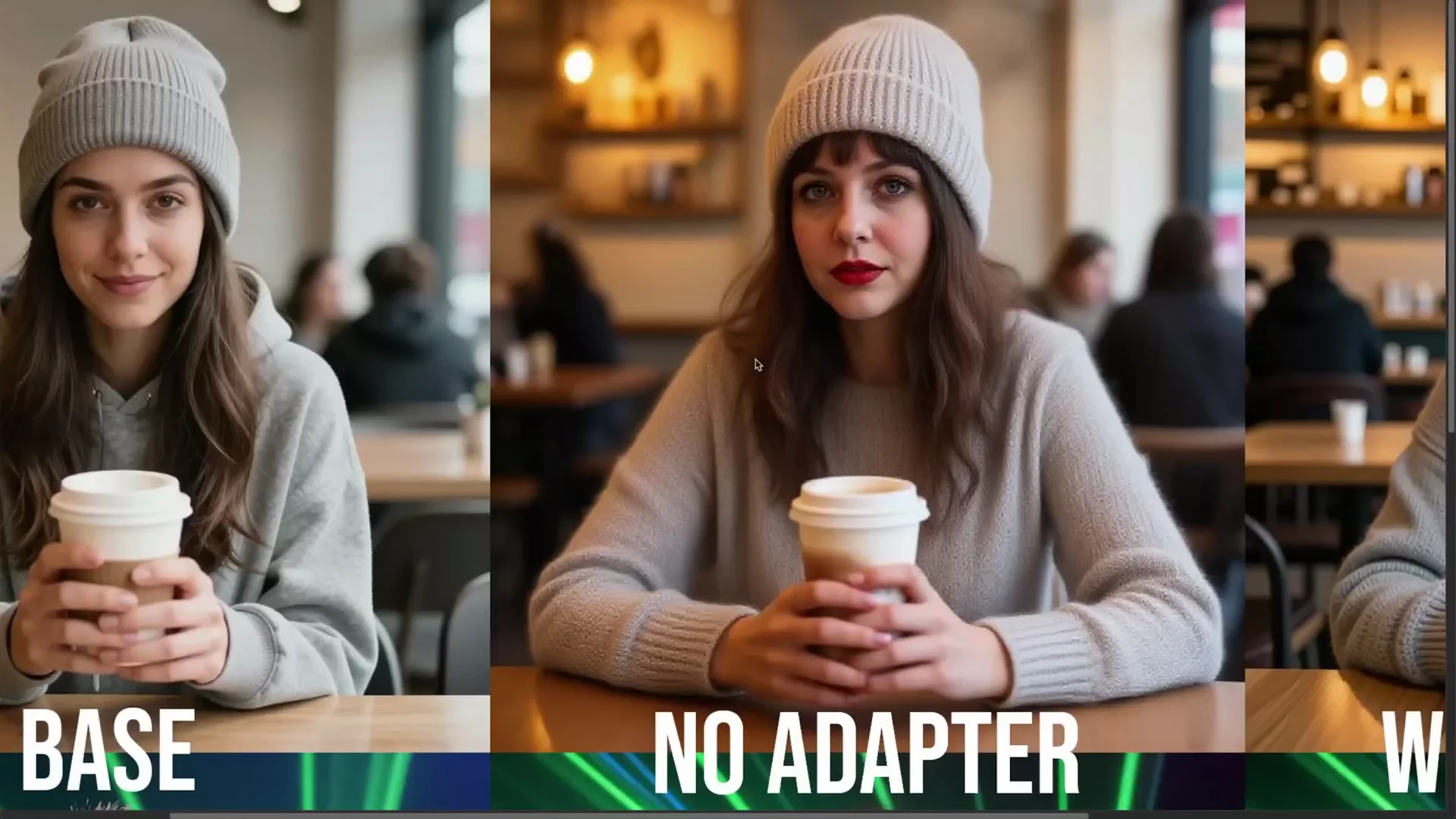
I am going to show how to train a Z-Image-Turbo LoRA in AI Toolkit using a training adapter that preserves the model’s distillation. Z-Image-Turbo dropped a few days ago. Z-Image-Base is the model you should normally train on, and Z-Image-Edit is also planned. Early on, when Z-Image-Turbo was released, it was clear this is an 8 step distilled model. It can run in fewer steps, and it is designed for fast single pass sampling without classifier free guidance.
At release, many expected Z-Image-Base to arrive within a day or two. There was confusion on the GitHub repo where an answer about the prompt upsampler was mistaken for a base model release timeline. That answer referred to the prompt upsampler, not the base. While that unfolded, I built a training adapter so Z-Image-Turbo could be trained directly in AI Toolkit without breaking down distillation.
Z-Image-Turbo generates excellent realism with only 6 billion parameters. It is much smaller than models like Flux at 12 billion or Flux 2 at 32 billion. It is fast and runs in about 8 steps for high quality results. The base was not yet released, so I trained on Turbo using an adapter to keep distillation intact.
Acknowledging key contributors
I want to call out the team behind this family of open models. A group within Alibaba has released many significant open models under Apache 2.0 and similarly permissive licenses, across image, text, and video. Their labs share a common logo. A large part of the current open-source progress in image generation, text generation, and video generation has benefited from this work. It is worth recognizing how much they have contributed to the open space.
Why Z-Image-Turbo needs a training adapter
What breaks when you train a distilled model directly
You cannot train Z-Image-Turbo directly with standard LoRA fine-tuning. It is distilled for fast, low step, no CFG sampling. If you train it naively, it will break down the distillation and regress toward a standard diffusion behavior that expects 20 to 50 steps and classifier free guidance.
- Without the adapter, after a few hundred steps, you start to see artifacts.
- The model tries to restore its original undistilled behavior with CFG and many steps.
- Continuing to train will further erode the distilled behavior, pushing it toward needing 30 to 40 steps plus CFG for good quality.
Distillation takes a teacher-student approach to reduce steps, often introducing critics and other mechanisms. Over multiple methods from LCM to variants used here, the high level idea is the same: reduce the number of steps, even approaching 1 step in some settings. When you train directly, the model drifts back to the pre-distilled behavior.
The adapter concept
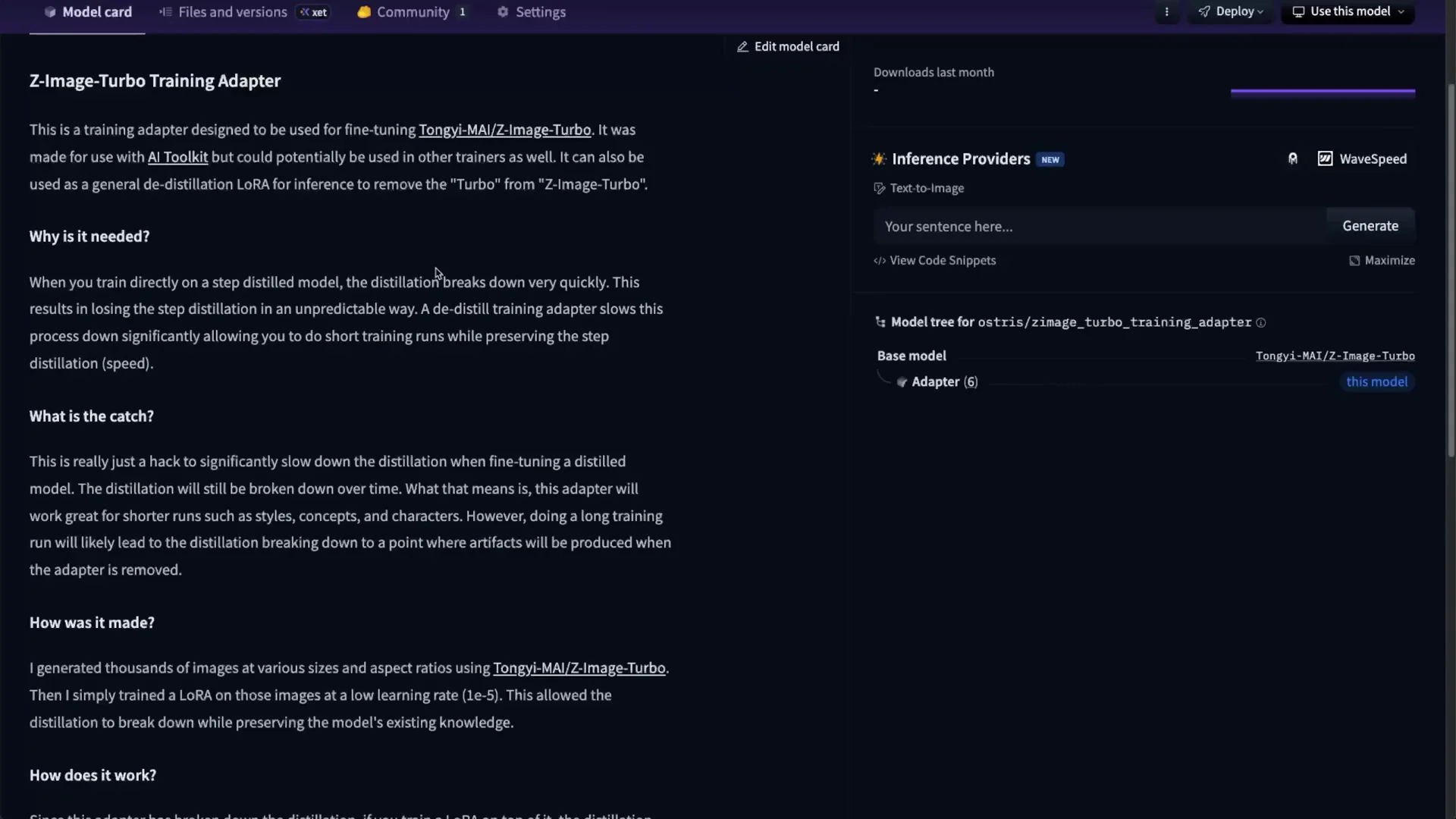
I created a Z-Image-Turbo training adapter for AI Toolkit. The core idea:
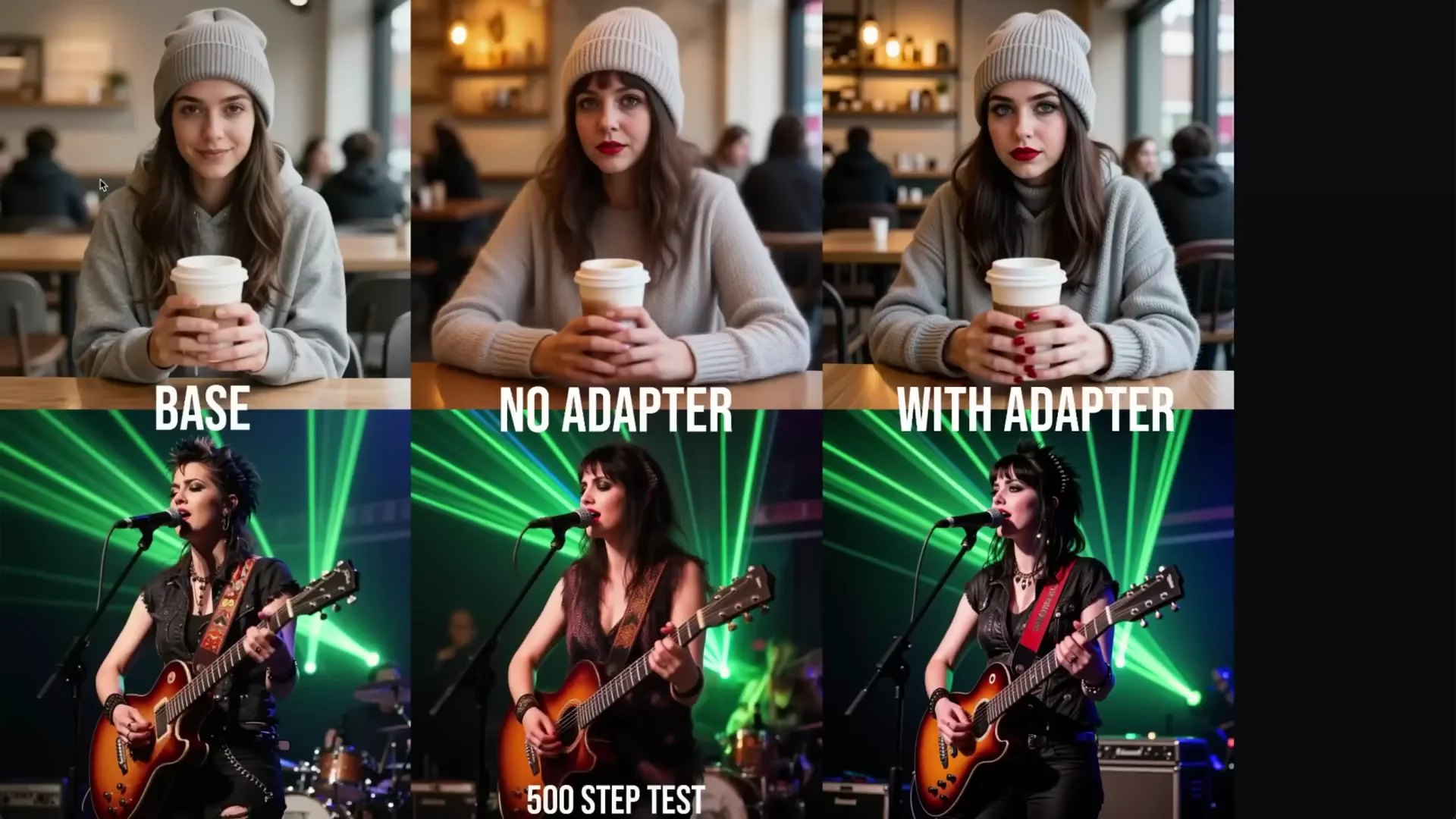
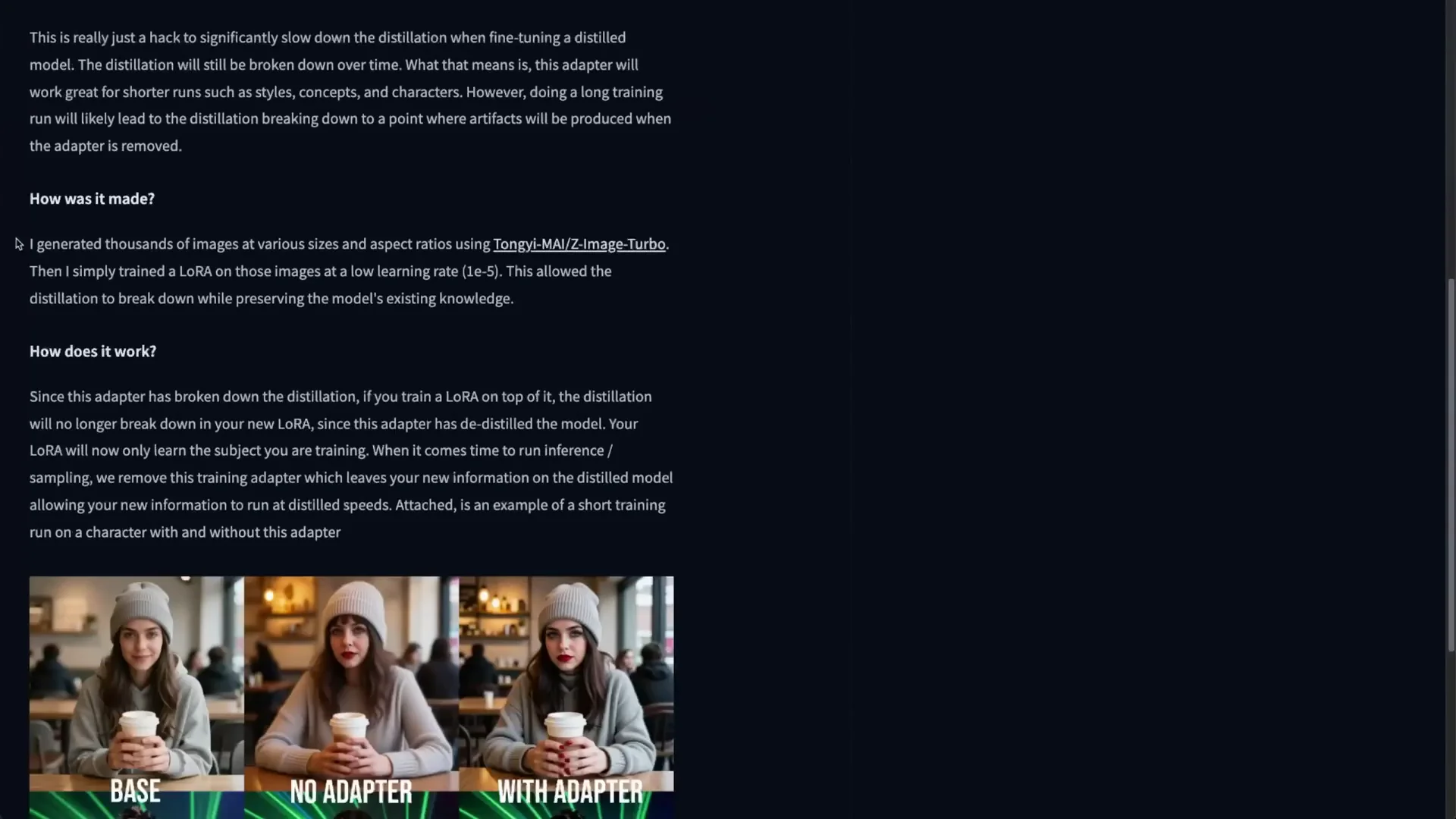
- Generate a large dataset with Z-Image-Turbo and train a LoRA that captures the breakdown of distillation. This adapter does not learn new concepts. It only internalizes the differences introduced by distillation itself.
- Apply this adapter to the model before training your actual LoRA. You are effectively training on a non-distilled representation, so your LoRA learns your concept or style without damaging distillation.
- After training, remove the adapter for sampling. The distilled behavior returns, and your new information remains on the distilled model.
This lets you train a LoRA on a turbo model without destroying its speed and low-step performance. You keep fast inference and high quality with few steps while teaching your character or style. AI Toolkit has this D-D distillation training adapter built in, with automatic merging during training and removal for inference.
Caveats and scope
- This adapter does not make sense for huge multi-million image finetunes. If you train for very long durations, you will slowly degrade distillation.
- For 5,000 to 10,000 steps, and even up to roughly 20,000 steps, training characters and styles should be fine.
- The intent is to capture personal concepts, styles, and characters while preserving Turbo’s speed and quality.
Training setup
Local vs cloud and hardware
You can run this locally. Z-Image-Turbo is small, and 24 GB of VRAM is more than enough. You can often train with 16 GB VRAM if you configure quantization or caching appropriately. I will demonstrate on RunPod with a 5090 for speed, but the same steps apply locally using the AI Toolkit repo and its install instructions.
- Recommended VRAM: 16 GB and up
- Comfortable VRAM: 24 GB and up
- Precision: BF16 works well
- Quantization: Optional to reduce VRAM, but turn it off if you have enough memory for faster training
Dataset preparation
In AI Toolkit, go to Datasets and create or select your dataset. I am using a children’s drawings dataset.
- Add your images.
- Add captions. Drag text files named to match each image. The toolkit reads them automatically.
Captioning strategy for style
You can train style with trigger words, or by captioning as if the style is the default output. Here I choose caption-only style:
- Describe the subject exactly, as if the model already draws in your target style by default.
- Do not mention style descriptors like child drawing, rough crayon sketch, crude drawing.
- Treat the outputs as the new normal: a house is described as a house, a person as a person, an owl as an owl, and so on, without style qualifiers.
This approach often yields a style that applies automatically when the LoRA is active, without requiring trigger words. Trigger words can still help, but I prefer caption-only style for simplicity and consistency.
Configure a new training job
Model selection and adapter versioning
- Job name: for example, Z-Image-Turbo - Children’s Drawings
- Architecture: Z-Image-Turbo
- Training adapter: select the Z-Image-Turbo training adapter. It is built in and will auto-merge for training and auto-remove for inference.
Adapter versioning:
- Current adapter is V1. A V2 is in progress with longer training.
- New jobs will pick up V2 automatically when it is released.
- If you clone an existing job, update the adapter version to V2 when available.
The toolkit keeps Turbo’s 8-step no CFG sampling settings correct out of the box, and it handles adapter merging automatically.
Key hyperparameters
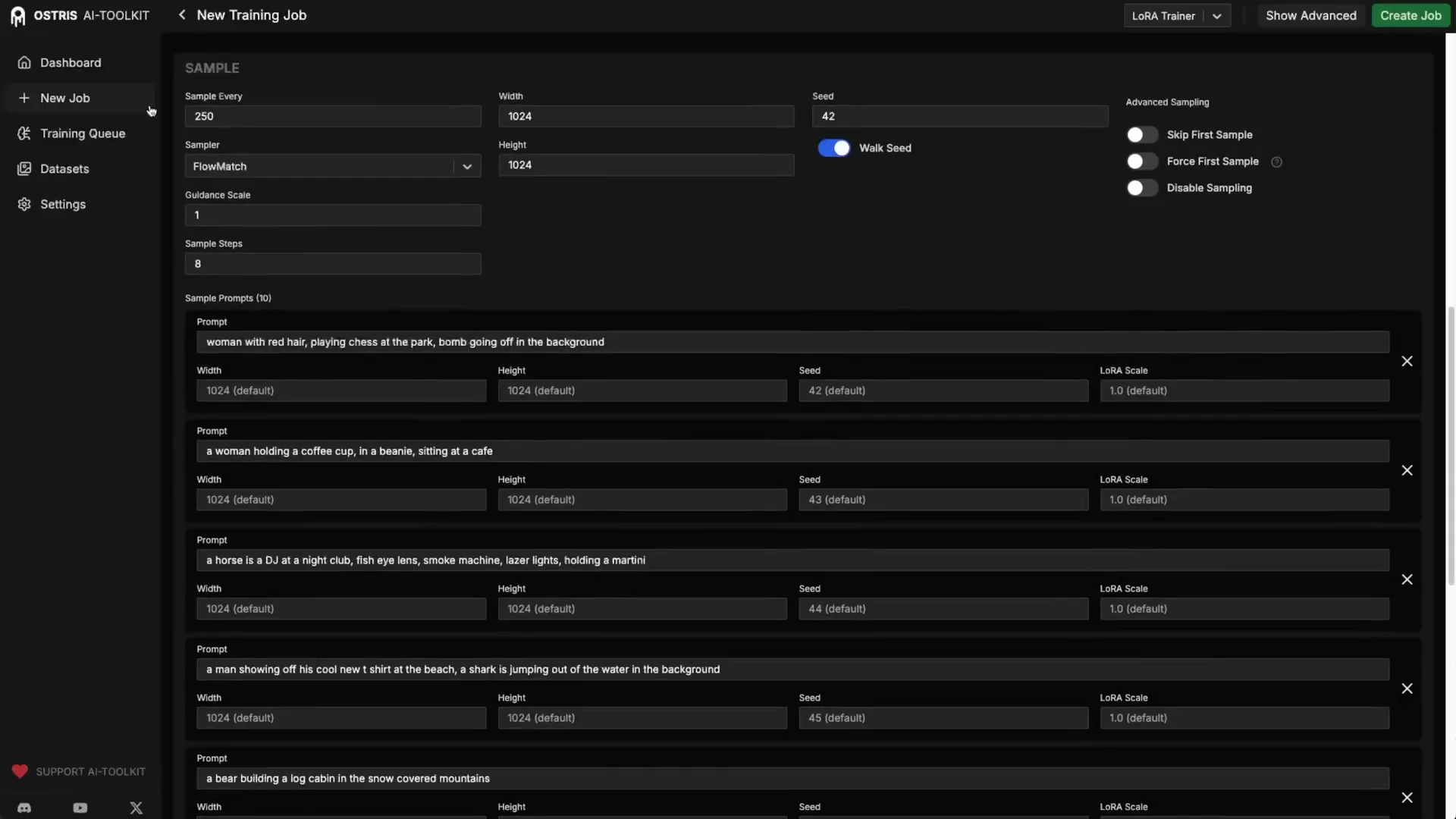
- Sample steps: 8
- CFG for sampling: 1 (Turbo is trained to run with no CFG dual pass)
- Training steps: 3,000 by default for this run
- Learning rate: 1e-4
- Do not go to 2e-4. That has caused model instability or explosions in testing.
Leave other defaults as-is for Turbo. You do not need a trigger word if you captioned the dataset as the new normal style.
If your style is heavy or takes longer to imprint, you can increase steps so you do not need to restart later.
Differential guidance
I enable differential guidance, which I used to train the Turbo adapter itself. It is experimental, and you can leave it off. I like it for faster convergence toward the target without raising the learning rate dangerously.
Conceptually:
- Standard optimization moves your current knowledge toward the target by stepping a bit closer each time. You get diminishing differences and never exactly hit the target.
- Differential guidance computes the difference between current and target, amplifies it similar in spirit to how CFG amplifies differences, and adds it back.
- This yields a controlled overshoot, so the path oscillates around the target and converges quickly without requiring a high learning rate.
Settings I use:
- Enable Differential Guidance in Advanced settings
- Guidance scale: 3
Resource settings for lower VRAM
To speed up or run on smaller GPUs:
- If you have 24 GB VRAM or more:
- Set quantization to none for maximum speed.
- Enable cache text embeddings to unload the text encoder after caching.
- You can set both related numeric fields to 8 in this section as appropriate for your setup.
- With quantization, memory usage drops further, potentially fitting on 16 GB VRAM.
I leave quantization off on a 5090 for speed, and I keep cache text embeddings on to save VRAM since the text encoder does not need to stay loaded during training.
Start the job and monitor performance
Create the job and start it. The toolkit will download models and begin training, merging the adapter internally during training and removing it for sampling.
Speed and memory usage
- Initial training iterations were about 4 seconds per step while initial assets downloaded and cached.
- Once warmed up, average iteration time dropped to around 1.3 seconds across resolutions, with many steps near 1 second.
- VRAM usage was about 17 GB in BF16 without quantization.
This indicates Z-Image-Turbo is fast even with the training adapter. If you quantize, expect lower VRAM. With careful settings, 16 GB VRAM cards can work.
Baseline model behavior
Before style learning, Turbo shows strong photo realism. It handles people and scenes with excellent detail for a 6B parameter model. Text is not its strongest area compared to larger models, but it is respectable and ahead of older image models. Style transfer is weaker by default, which is why we are training this LoRA.
Improve style convergence with time step bias
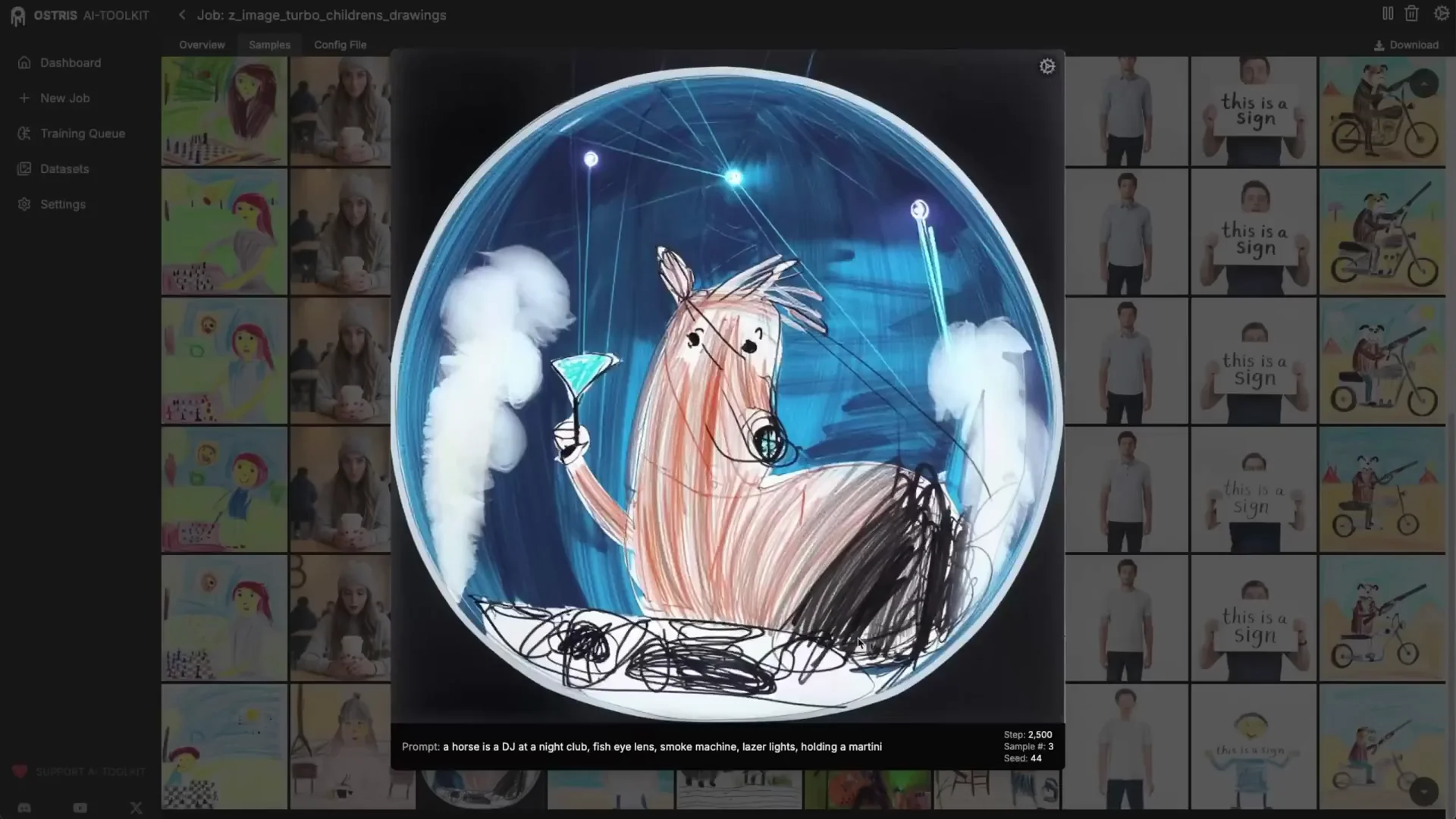
As training progresses, you may see partial style adoption, especially for a heavy style like children’s drawings. Around 2,000 steps, some samples may show the style while others remain closer to realism.
For drastic style changes that alter the overall composition, adjust time step bias:

- Switch to High Noise bias. This targets the earliest, high-noise diffusion steps that define the base composition.
- The goal is to stop the model from building a realistic color image first and instead build a drawing-like composition from the start.
Process:
- Pause or stop generation temporarily to apply the change.
- Set time step bias to High Noise.
- Resume training. The next samples should shift compositionally toward the target style across prompts.
After the composition aligns with the style, you can go back to a balanced bias to emphasize medium and low-noise refinements, such as crayon texture and stroke character. Use your samples to decide when to switch back.
Wrap up training at 3,000 steps
I stopped at 3,000 steps, which is a sensible default for a style like this. At this point:
- The style had propagated across subjects and prompts consistently.
- Composition reflected a drawing-first structure rather than realistic scene building.
- Details appeared simplified in the intended way, while still retaining recognizable forms.
If your style needs more time, extend training to 5,000 or more steps. For heavy styles, that can improve consistency. Stay mindful of the caveat about extremely long runs gradually degrading distillation.
Use the LoRA in Comfy UI
Z-Image-Turbo works well in Comfy UI. The default workflows include a template.
Load the template and LoRA
- Open Comfy UI and go to Templates.
- Load Z-Image-Turbo text-to-image.
- Expand the subgraph if needed to see the sampler and model nodes.
- Add a LoRA loader node set to Model Only and point it to your trained Z-Image-Turbo LoRA.
- Keep steps at 8, which matches the model’s distilled setup.
Sampling notes
- 8 steps is recommended. The template often includes options like res multistep. You can switch samplers as needed. I used UER.
- If you trained at a specific resolution range, generate within that range for best results.
- Turbo is designed for no CFG dual pass. Keep CFG at 1 for sampling, which effectively behaves as no CFG in this distilled setup.
The trained LoRA applies the style as the new normal when active, so you should not need trigger words if you captioned that way.
Tips for character training
- Use balanced time step bias rather than High Noise for character training. You are not changing the entire composition, so you do not need heavy emphasis on the earliest steps.
- Weighted sigmoid for time step weighting works well in many character cases.
- Character LoRAs typically converge faster than heavy style LoRAs.
- This model focuses on realism. If you push style, expect to spend more steps on composition and texture alignment. The adapter lets you do that without sacrificing Turbo’s speed at inference.
Performance and memory quick reference
- Model size: 6B parameters
- Typical steps: 8 for inference
- CFG: 1 for Turbo sampling
- Learning rate: 1e-4 recommended for training
- Training speed: around 1 to 1.3 seconds per iteration on a 5090
- VRAM during training: about 17 GB in BF16 without quantization
- Quantization: optional for lower VRAM; turn off for faster training if you have 24 GB VRAM or more
- Adapter: auto-merged during training and auto-removed during inference in AI Toolkit
Step-by-step summary
- Prepare data
- Collect images for your concept or style.
- Create captions describing the subject plainly, treating the style as the default. Avoid explicit style words if you want the style to apply automatically.

- Create a new job
- Select Z-Image-Turbo as the architecture.
- Enable the built-in Z-Image-Turbo training adapter V1.
- Name the job and select your dataset.
- Configure training
- Steps: start with 3,000 for a style. Characters often need fewer.
- Learning rate: 1e-4.
- Differential guidance: optional, guidance scale 3.
- Sample steps: 8.
- CFG: 1 for Turbo sampling.
- Resolutions: leave defaults unless your dataset requires specific sizes.
- Optimize for your GPU
- If you have 24 GB VRAM or more, disable quantization for speed.
- Enable cache text embeddings to unload the text encoder.
- You can set both related numeric fields to 8 in this section where applicable.
- Train and monitor
- Start the job and let the toolkit download and cache models.
- Check iteration speed and VRAM usage to ensure stability.
- Review samples as they arrive.
- Adjust time step bias if needed
- If your style changes overall composition, switch to High Noise bias mid-training to push composition toward the style.
- Switch back to balanced once composition stabilizes to refine texture and details.
- Finish training
- Stop at 3,000 steps or extend to 5,000 or more if needed for consistency.
- The adapter will be removed automatically for inference.
- Inference in Comfy UI
- Load the Z-Image-Turbo text-to-image template.
- Insert your trained LoRA with Model Only loading.
- Keep steps at 8 and sample at similar resolutions to training.
- Generate prompts without style trigger words if you trained caption-only style.
Closing
This approach lets you train a LoRA on Z-Image-Turbo without breaking its distillation. The adapter absorbs the distillation differences during training, then drops out at inference so you retain Turbo’s speed and low-step quality with your new concept or style.
For heavy styles, expect to use High Noise time step bias to reframe composition, then return to balanced to refine textures. For characters, stay balanced and use weighted sigmoid time step weighting if needed. Keep the learning rate at 1e-4 to avoid instability. The adapter is built into AI Toolkit, so setup is straightforward and sampling remains fast at 8 steps.
Train a Z-Image-Turbo LoRA with this method to get fast, consistent inference on a compact 6B model while adding your custom character or style without sacrificing the distilled behavior.
Recent Posts
How to Improve Text on Z-Image Turbo?
Z-Image-De-Turbo: A de-distilled variant of Z-Image-Turbo for flexible training, LoRA development, and extended experimentation without adapters.
Z-Image-De-Turbo de-distilled variant of Z-Image
Z-Image-De-Turbo: A de-distilled variant of Z-Image-Turbo for flexible training, LoRA development, and extended experimentation without adapters.
Z-Image Turbo ControlNet Workflow
Tutorial on Union ControlNet in ComfyUI—pose, Canny, and depth controls, depth-model preprocessing, step-by-step workflow, plus speed tests with example results.
Comments
Loading comments...